
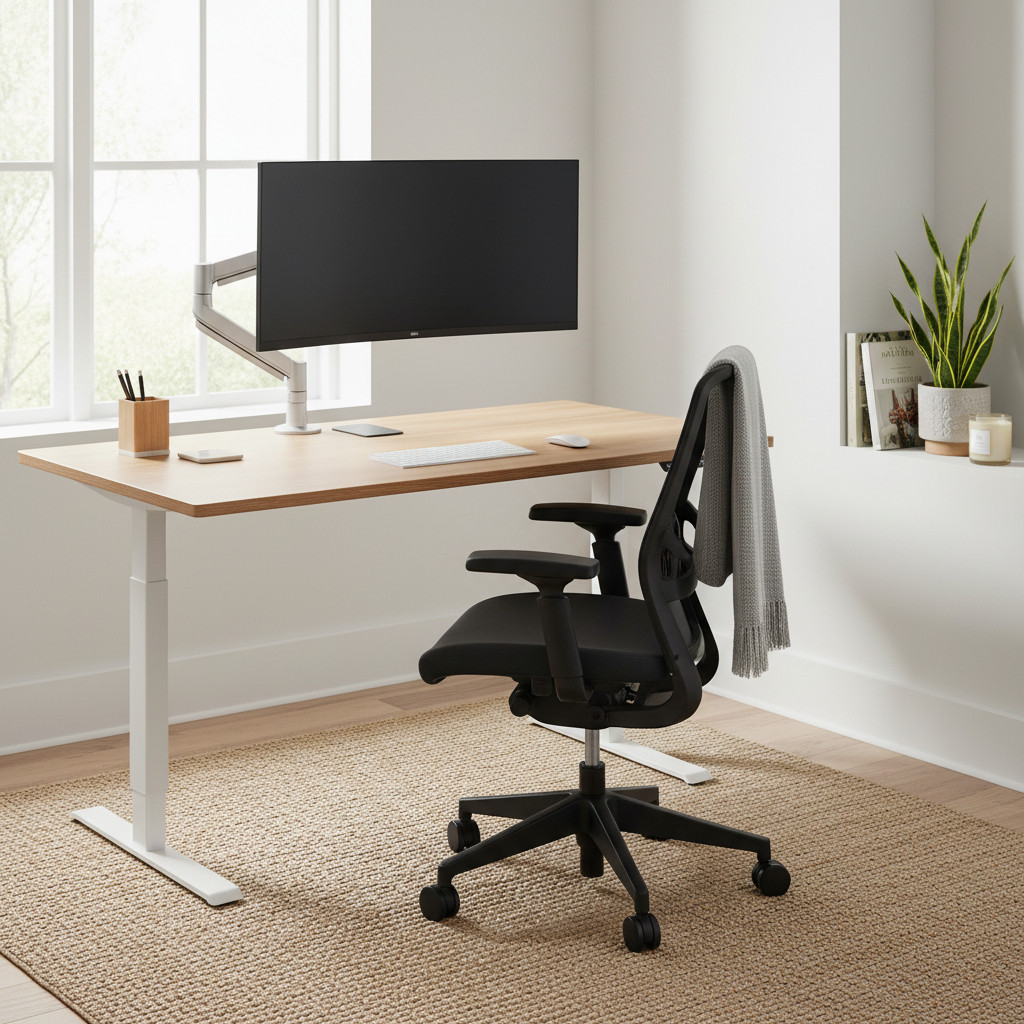
If you work from home, your commute might be just a few steps, but the physical toll of your workday can be surprisingly high—especially if your ergonomic desk setup isn’t up to par. That persistent neck ache, the dull throb in your lower back, or the tingling in your wrists might not be just “part of the job.” These are often warning signs from your body, indicating that your home office setup is working against you. It’s time to conduct a home office audit for 2026 and re-evaluate your workspace for long-term health and comfort.
This guide will walk you through a simple, step-by-step ergonomic audit to optimize your desk setup for better comfort and productivity. We’ll identify the common culprits behind work-from-home discomfort and provide actionable solutions. By understanding the principles of a proper ergonomic desk setup, you can make immediate improvements and learn which gear is truly worth the investment. Think of this as a wellness check for the space where you spend a significant portion of your day.
The Hidden Signs Your Home Office Setup is Failing You
Discomfort can creep up slowly. What starts as minor stiffness at the end of the day can evolve into chronic pain that affects your productivity and quality of life. Before we adjust your equipment, let’s identify the signals that your current setup needs an overhaul.
Do you find yourself constantly shifting in your chair? Perhaps you lean forward to see your screen, crane your neck during video calls, or rest your wrists on the sharp edge of your desk. Other red flags include frequent tension headaches, shoulder pain that radiates down your arm, or numbness in your fingers. These symptoms are your body’s way of telling you that your posture and positioning are causing undue strain. Ignoring them can lead to more serious musculoskeletal issues. The goal of good home office ergonomics is to arrange your workspace to fit you, not force you to fit it.
Step 1: The Monitor Height Check
One of the most common ergonomic mistakes involves monitor placement. If your screen is too low, you naturally hunch forward, straining your neck and upper back. If it’s too high, you tilt your head back, compressing the vertebrae in your neck.
A simple guideline is to position your monitor so that the top edge of the screen is at or slightly below your eye level. When looking straight ahead, your eyes should naturally hit the top third of the monitor. This placement allows you to maintain a neutral neck posture, with your head balanced directly over your spine.
To achieve this, you might not need new equipment just yet. A stack of sturdy books or a dedicated monitor riser can work wonders. The key is to bring the screen up to meet your gaze, preventing the dreaded “tech neck” that has become so common. If you use a laptop as your primary screen, propping it up and using an external keyboard and mouse is essential to avoid hunching.
Step 2: The Chair and Lumbar Support Evaluation
Your chair is the foundation of your ergonomic desk setup. A dining chair or a st