
In today’s digitally connected world, setting up and managing a home Wi-Fi network with a strong Wi-Fi Password has become an essential part of modern living. From connecting smartphones and laptops to streaming devices and smart appliances, a well-functioning home network is crucial for seamless communication and entertainment. This article explores the intricacies of setting up, optimizing, and maintaining a home Wi-Fi network, addressing a range of topics such as network security, advanced tools for monitoring activity, separate guest networks, smart device connectivity, and innovative solutions like mesh Wi-Fi systems. Whether you’re a tech-savvy individual or someone new to networking, the answers to these questions will empower you with the knowledge needed to create a reliable, efficient, and secure network environment that seamlessly integrates into your daily life. Now, let’s delve into the process of changing your Wi-Fi password.
Changing Wi-Fi Password
In today’s digitally connected world, setting up and managing a home Wi-Fi network has become an essential part of modern living. As more devices and smart technologies become integrated into our daily routines, ensuring a reliable and secure home network has become paramount. From connecting smartphones and laptops to streaming devices and smart appliances, a well-functioning home network is crucial for seamless communication and entertainment.
Why change your Wi-Fi password?
Changing your Wi-Fi password periodically is an important security measure. It helps protect your network from unauthorized access and potential threats. By regularly updating your Wi-Fi password, you can prevent unauthorized users from connecting to your network and ensure that only trusted devices have access. This helps safeguard your personal information and sensitive data and ensures your network’s stability and performance.
Step 1: Accessing your router’s settings
To change your Wi-Fi password, the first step is to access your router’s settings. You can do this by opening a web browser and entering your router’s default IP address in the address bar. The default IP address is typically provided in the router’s manual or can be found by searching for your router’s make and model online. Once you have entered the IP address, press Enter to access the router’s login page.
Step 2: Logging in to the router
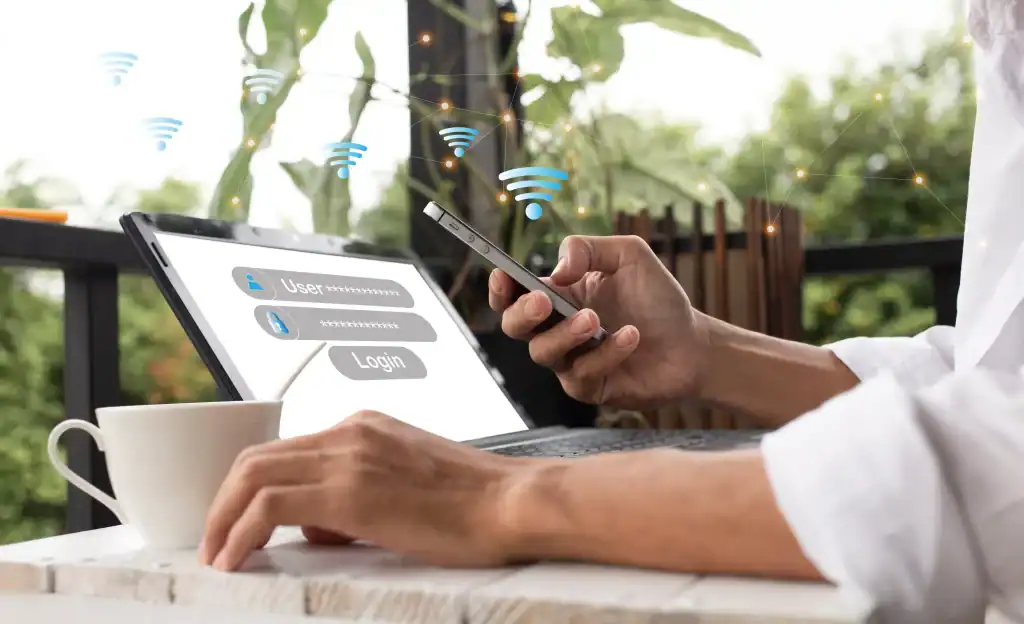
After accessing the router’s lo