
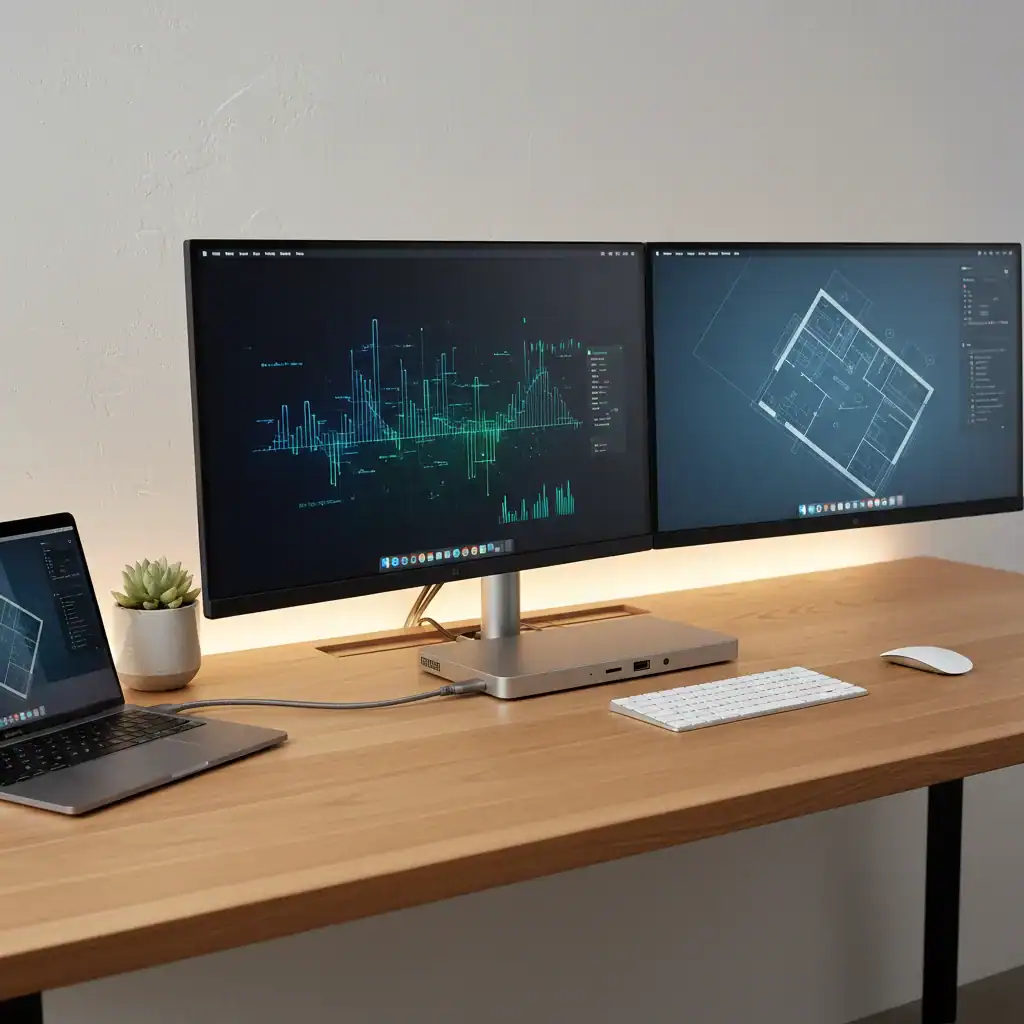
Building the ultimate desk setup shouldn’t leave you buried under a mountain of adapters. If you want to connect multiple monitors, external SSDs, and accessories to your laptop with a single plug, you need a docking station. But finding the best USB-C dock for a MacBook or Windows laptop requires cutting through a maze of technical jargon.
We test tech gear constantly to help you make informed decisions. Through rigorous analysis of high-performance desk setups and peripheral compatibility, we know exactly what separates a reliable dock from a frustrating bottleneck.
This comprehensive USB-C dock buying guide will help you understand port standards, match technical specifications to your hardware, and build a seamless, powerful workstation. Here is everything you need to know.
Decoding the Ports: Finding the Best USB-C Dock for MacBook or Windows Laptops
The biggest point of confusion when buying a dock is the connection protocol. USB-C refers only to the physical shape of the connector—the small, reversible oval port. The actual technology powering that port dictates the dock’s true capabilities.
Understanding the Standards
- Standard USB-C: These ports handle data transfer, video output, and power, but their overall bandwidth is usually limited to 5 Gbps or 10 Gbps. They work for basic setups with a single monitor and a few low-demand peripherals.
- Thunderbolt 3: This Intel-developed protocol uses the USB-C connector but drastically increases bandwidth to 40 Gbps. It supports dual 4K monitors at 60Hz and blazing-fast data transfers.
- Thunderbolt 4: While it shares the same 40 Gbps maximum bandwidth as Thunderbolt 3, Thunderbolt 4 enforces stricter minimum requirements. It guarantees support for dual 4K displays or a single 8K display, plus enhanced security against DMA attacks.
How to Identify Your Laptop’s Ports
Before you shop, inspect the ports on your laptop. A standard USB-C port might have a small “SS” (SuperSpeed) logo or a battery icon next to it. Thunderbolt ports almost always feature a lightning bolt symbol.
Apple’s recent MacBook Pro and MacBook Air models utilize Thunderbolt ports, making them highly versatile. Many premium Windows laptops also feature Thunderbolt 4. If your laptop only has a basic USB-C port without video output, a high-end Thunderbolt dock won’t magically enable dual-monitor support.
Technical Matching Criteria: How to Choose the Best USB-C Dock for MacBook and Windows Laptops – Expert Guide to the Best USB-C Dock for MacBook
A great USB-C dock must meet the specific demands of your hardware and workflow. You need to match the dock’s capabilities to your peripherals.
Display Requirements and Resolution
Power users and content creators often require multiple screens. When checking a dock’s display specs, look beyond the maximum resolution. Pay